
Setting Up Two-Factor Authentication on Your Everyday Apps

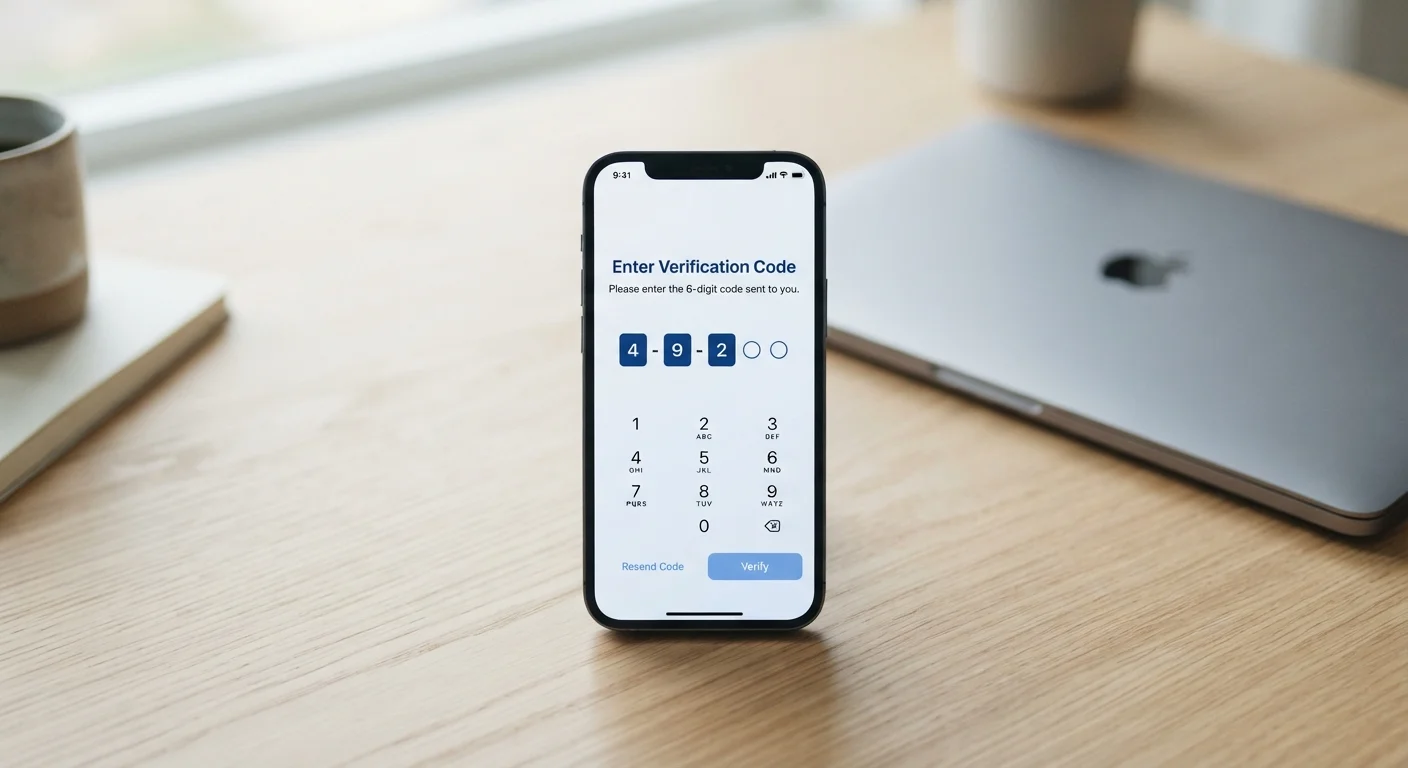
Photo: InsightsVilla.com | Quick Search. Right Info editorial
Key Takeaways
- Two-factor authentication (2FA) requires a second proof of identity beyond your password, blocking most unauthorized logins.
- Authenticator apps provide stronger protection than SMS text codes, which can be intercepted.
- Most major apps - email, social media, banking - offer 2FA in their security or account settings.
- Save backup codes in a secure location immediately after enabling 2FA to avoid being locked out.
- Enabling 2FA takes under five minutes per app and is one of the highest-impact security steps you can take.
Why Two-Factor Authentication Matters
A password alone is no longer sufficient protection. Data breaches regularly expose billions of credentials, and automated tools can test stolen username-password combinations across hundreds of sites in seconds - a technique called credential stuffing. Two-factor authentication (2FA) addresses this by requiring a second proof of identity that a thief is unlikely to have, even if they know your password.
The second factor is typically something you physically possess: your phone, generating a time-sensitive code. Without that code, a stolen password is useless for logging in. Security researchers broadly regard 2FA as one of the most effective practical defenses available to everyday users. For a fuller picture of smartphone security fundamentals, see Mobile Security From the Ground Up.
Start With Your Most Critical Accounts
It's also worth understanding how 2FA compares to newer authentication approaches. Passkeys are gaining traction as an alternative - they eliminate passwords entirely - but 2FA remains the widely available standard across most apps and services today.
What You'll Need Before You Start
What you will need
Authenticator App
Generates time-sensitive one-time codes that serve as your second factor - more secure than SMS.
Password Manager
Stores complex, unique passwords alongside 2FA backup codes in an encrypted vault.
Printed Backup Code Sheet
Offline copy of your backup codes stored in a physically secure location for emergency account recovery.
A password manager isn't required, but pairing one with 2FA gives you a more complete security foundation - strong unique passwords plus a second verification layer.
Step-by-Step: Enabling 2FA on Your Apps
Save Your Backup Codes Now
Install an authenticator app on your phone
An authenticator app generates a new six-digit code every 30 seconds that only your device can produce. Search your phone's app store for a reputable authenticator app - common options include Google Authenticator, Microsoft Authenticator, and Authy. Install one before proceeding. Authy offers multi-device sync and encrypted backups, which can be convenient if you ever replace your phone.
Navigate to the security settings of your first app
Open the app or website you want to secure. Look for Settings → Security or Privacy & Security. The exact path varies by platform, but the 2FA option is almost always under a security or account section. On mobile apps, check your profile menu. On websites, look for account settings in the top-right corner.
Locate and select the two-factor authentication option
Inside the security settings, look for labels such as Two-Factor Authentication, Two-Step Verification, or Login Verification. Tap or click to begin setup. The platform will typically ask you to confirm your current password before proceeding - this is a standard security check.
Choose your second-factor method
Most services offer at least two options:
- Authenticator app - Recommended. Scan the QR code shown on screen using your authenticator app. The app will immediately begin generating codes for that account.
- SMS text message - The service texts a code to your phone number each time you log in. Simpler to set up but less secure than an authenticator app.
Select Authenticator App when available. Open your authenticator app, tap the + or Add Account button, and point your camera at the QR code on the screen.
Verify the setup with a test code
After scanning, your authenticator app will display a six-digit code for that account. Enter this code into the verification field on the website or app before the 30-second timer resets. A successful entry confirms the link between the service and your authenticator app. If the code is rejected, wait for the next one to generate and try again.
Download and securely store your backup codes
After enabling 2FA, the service will display a set of one-time backup codes - typically 8 to 10 codes. These allow you to access your account if your phone is lost, stolen, or replaced. Download or write them down immediately. Store them somewhere physically secure, such as a locked drawer, or save them inside a password manager. Each backup code can only be used once.
Repeat for your remaining priority accounts
Work through your accounts in order of sensitivity: email first, then banking and financial services, then social media platforms. The process is nearly identical across services once you know where to look. Most people can secure four to five accounts in under 30 minutes. For a broader review of your overall security posture, the Online Privacy Audit checklist provides a useful next step.
SMS Codes Are Better Than Nothing - But Not Ideal
After Setup: Keeping Your 2FA Secure
Once 2FA is active across your key accounts, a few habits will keep it effective. First, treat your authenticator app like a house key - don't share access to your phone without thinking about what that means for your codes. Second, if you replace your phone, transfer your authenticator accounts before wiping the old device; most authenticator apps have a built-in migration or transfer process.
If you ever receive an unexpected 2FA code - one you didn't trigger - treat it as a warning sign that someone has your password and is attempting to log in. Change that account's password immediately. You may also want to review your social media privacy settings as a complementary step, since account security and privacy settings work best together.
The content on this site is for informational purposes only and is not a substitute for professional advice. Always consult a qualified professional for guidance specific to your situation.