
Locking Down Your Social Media Privacy Settings

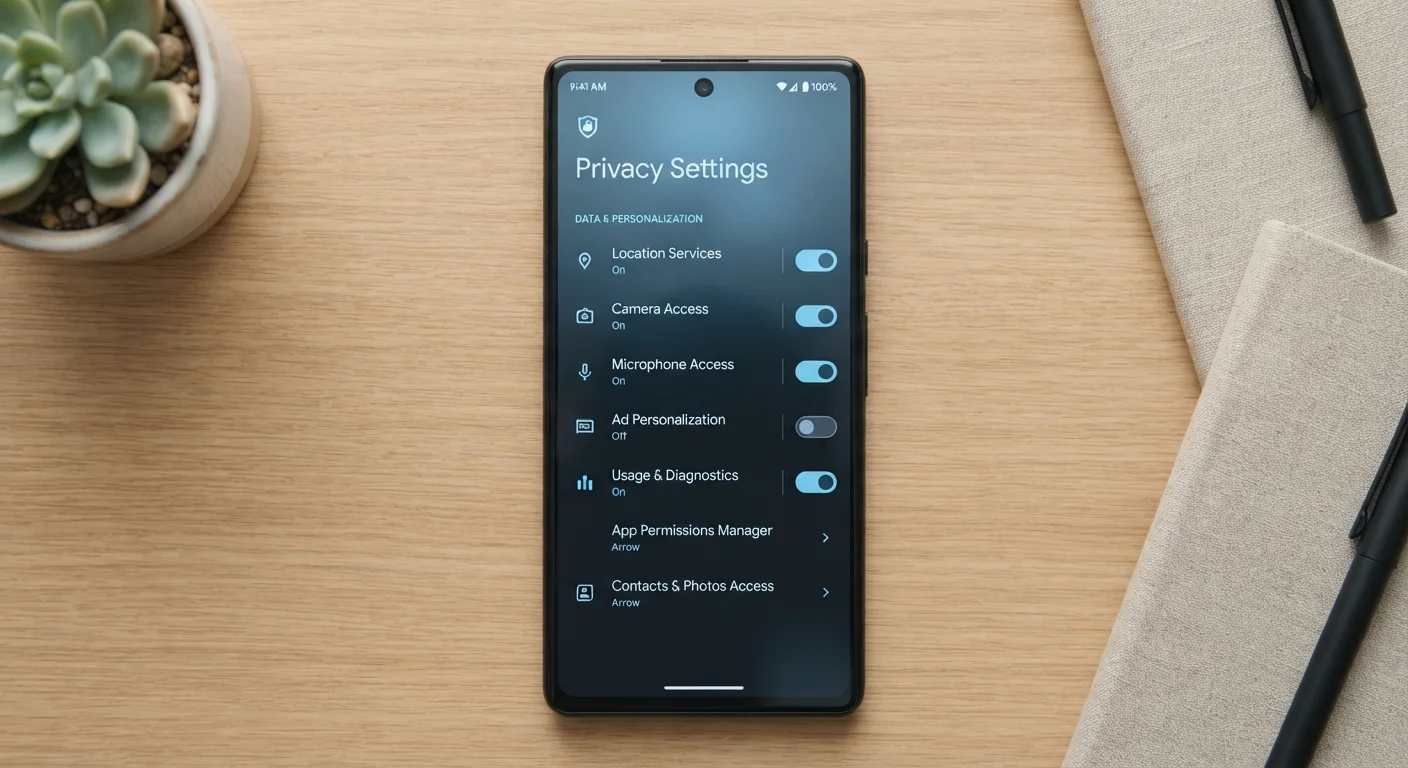
Photo: InsightsVilla.com | Quick Search. Right Info editorial
Key Takeaways
- Default social media privacy settings are rarely the most protective - they typically favor visibility.
- Adjusting audience controls, data permissions, and ad tracking settings takes fewer than 30 minutes per platform.
- Limiting third-party app access to your accounts reduces a major but often overlooked data exposure risk.
- Regularly reviewing your settings matters because platforms update their options without notifying users.
- Strong privacy settings work best alongside good account security practices like two-factor authentication.
Why Default Settings Work Against You
Social media platforms are designed to encourage sharing. Their default privacy settings reflect that goal - not yours. Out of the box, most accounts are set to maximize visibility: posts are public, your profile is searchable by anyone, and third-party apps you connected years ago may still have access to your data. For a deeper foundation on why this matters, see our guide for first-timers on online privacy.
The practical risks of ignoring these settings range from minor (strangers seeing your vacation photos) to serious (data brokers aggregating your activity, employers finding old posts, or scammers using public profile details for targeted phishing). None of these outcomes require a data breach - they happen through information you've already shared under settings you never changed.
The good news: adjusting these controls is straightforward and takes well under an hour. The steps below cover the settings that make the most meaningful difference across the platforms most Americans use.
What you will need
What You'll Need Before You Start
No technical expertise is required. You'll simply need access to your accounts and about 15-45 minutes depending on how many platforms you use. If you're also thinking about your broader device security, our mobile security guide for smartphone owners is a useful companion resource.
Social Media Account (Facebook, Instagram, X/Twitter, etc.)
The account whose privacy settings you will be reviewing and adjusting.
Web Browser or Mobile App
Used to access each platform's settings menu - some platforms offer more options on desktop.
Password Manager
Helps you keep account credentials secure while you update settings across multiple platforms.
Once you have what you need, work through each platform one at a time using the steps below. Starting with the platform you use most frequently will give you the biggest immediate benefit.
Step-by-Step: Locking Down Each Setting
The following steps apply broadly across major platforms, though the exact menu names will differ. Screenshots in apps change frequently, so use these as a navigation guide rather than a pixel-perfect map.
Audit Who Can See Your Profile and Posts
On every major platform, navigate to Settings → Privacy (the exact label varies). Look for audience controls that govern who sees your profile, past posts, and future content. Set the default audience for new posts to Friends or Followers only rather than Public. On Facebook, use the "Limit Past Posts" option to bulk-update older public content. On Instagram, switching to a private account restricts all posts to approved followers only.
Restrict How Others Can Find and Contact You
Look for discoverability or searchability settings. Most platforms let you control whether people can find your account by phone number or email address, and whether your profile appears in search engine results. Turn off phone-number and email-based lookup unless you have a specific reason for it. On Facebook, set "Who can look you up using your email/phone" to Only me and disable search engine indexing of your profile.
Review and Revoke Third-Party App Access
Go to Settings → Apps and Websites (Facebook/Instagram) or Settings → Connected Apps (X). You'll see a list of every external app or service you've granted access to your account - often far more than you remember. Remove any app you no longer use or don't recognize. Pay attention to the permissions each app requested: some request read access to your messages or friends list, which is broader than most services need.
Limit Ad Tracking and Data Use
Inside Settings → Ads or Privacy → Data, platforms typically offer controls over how your activity is used to target advertising. Options commonly include: disabling "activity off [platform]" tracking (data collected from other websites and apps), opting out of interest-based ad categories, and preventing your social actions from being used in ads shown to others. Turning these off doesn't eliminate ads, but it reduces the amount of your behavioral data that feeds the ad system.
Manage Location and Device Permissions
Check both the platform's in-app location settings and your phone's system-level app permissions. On iOS, go to Settings → [App Name] → Location and set it to Never or While Using rather than Always. On Android, the equivalent is in Settings → Apps → Permissions → Location. Inside the platform itself, disable automatic location tagging on posts unless you deliberately want to share it.
Enable Login Alerts and Review Active Sessions
Under Security Settings, activate login notifications so you're alerted when a new device or browser accesses your account. Then check Active Sessions (called "Where You're Logged In" on Facebook) and log out of any sessions tied to devices or locations you don't recognize. This step overlaps with account security but has direct privacy implications - unauthorized access means someone may be reading your private messages or posts.
Desktop Settings Are Often More Complete
Platforms Change Settings Without Warning
Keep Your Settings Working Over Time
Updating your privacy settings once is a strong start - but it isn't a one-time fix. Social platforms regularly roll out new features that introduce fresh data-sharing options, and those options almost always default to the least private setting. Pair your social media privacy work with a periodic online privacy audit to catch any new toggles before they accumulate.
Account security and privacy go hand in hand. If someone gains unauthorized access to your account, all your privacy settings become irrelevant. Enabling two-factor authentication is one of the most effective protective steps you can take - our guide to setting up 2FA on everyday apps walks through the process platform by platform.
Removing App Access Doesn't Delete Shared Data
Finally, if you're active in online groups or communities, check out our advice on staying safe when joining a new online community - privacy settings alone don't protect you from social engineering within groups you've joined.
The content on this site is for informational purposes only and is not a substitute for professional advice. Always consult a qualified professional for guidance specific to your situation.