
Password Managers: How They Work and Why Security Experts Recommend Them

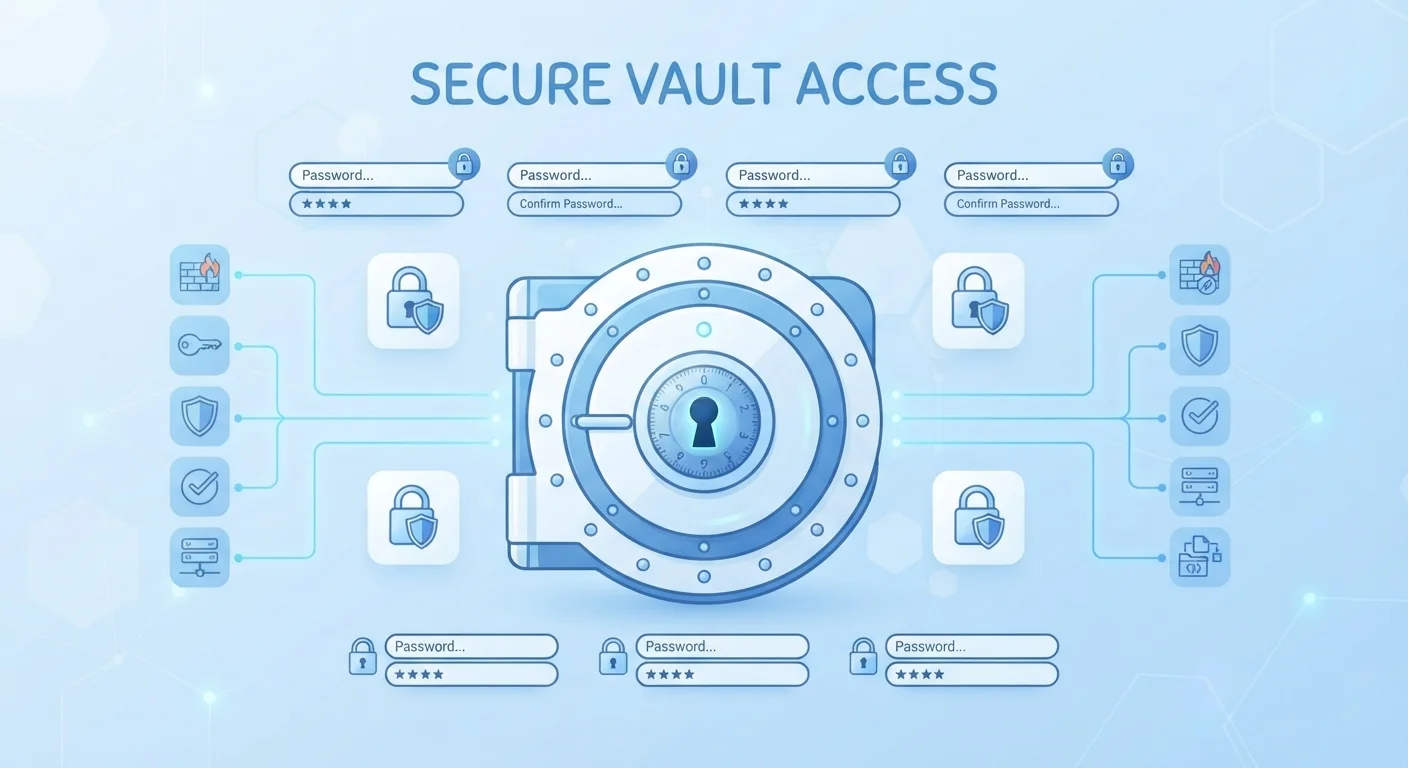
Photo: InsightsVilla.com | Quick Search. Right Info editorial
Key Takeaways
- Password managers store all your credentials in a single encrypted vault protected by one master password.
- Strong encryption means even the password manager provider typically cannot read your stored data.
- Autofill features help protect against phishing by only filling credentials on the correct website.
- Using unique, complex passwords for every account is the single biggest way to reduce hack risk.
- Password managers pair well with two-factor authentication for a stronger overall security posture.
What Is a Password Manager?
A password manager is an application that securely stores all of your login credentials - usernames and passwords - in one protected location called a vault. Instead of memorizing dozens of passwords or writing them on sticky notes, you remember a single master password that unlocks access to everything inside.
Password managers also generate strong, random passwords on your behalf. When you sign up for a new account, the app can create something like T7#mPx!9qLw2 and save it automatically - no mental effort required. This removes the temptation to reuse simple passwords, which is one of the leading causes of account takeovers.
Master password
The single password you create to unlock your password manager vault. Everything else inside is protected by it, so it should be long and unique.
Encryption
A method of scrambling data so it can only be read by someone with the correct key. AES-256 is the widely used standard in password managers.
Zero-knowledge model
A design where the password manager company stores only encrypted data and has no ability to read your actual passwords - only you can decrypt them.
Autofill
A feature that automatically enters your saved username and password into a login form when you visit the correct website.
Credential stuffing
An attack where hackers take passwords leaked from one data breach and try them on other websites, exploiting people who reuse passwords.
Vault
The encrypted container inside a password manager where all your saved credentials and other sensitive data are stored.
For a broader look at protecting your devices, see our guide to mobile security from the ground up which covers everything from lock screens to phishing texts.
How Password Managers Store and Encrypt Your Data
The security foundation of any password manager is encryption - a process that scrambles your data so it is unreadable without the right key. Most reputable managers use AES-256 encryption, the same standard used by governments and financial institutions.
Here is the key detail: your vault is encrypted and decrypted on your own device, not on the company's servers. The master password you choose is used to derive an encryption key locally. This is called a zero-knowledge or end-to-end encrypted model - it means the company stores only a scrambled blob of data and has no way to read your actual passwords even if they wanted to.
Zero-knowledge does not mean zero risk
When the vault syncs to the cloud (more on that next), the encrypted data travels and is stored in its scrambled form. A breach of the provider's servers would expose locked data that is computationally impractical to crack without your master password.
How Autofill and Syncing Work
Password managers install a browser extension or use an on-device accessibility service to detect when a login form appears. When you navigate to a site where you have saved credentials, the app offers to fill them in automatically - no copy-pasting required.
An often-overlooked security benefit of autofill is phishing protection. Because the manager matches credentials to the exact website domain they were saved for, it will not autofill your bank password on a fake site like mybank-secure-login.com. The mismatch is caught silently, even if the page looks identical to the real one.
Syncing works by uploading your encrypted vault to the provider's cloud servers. When you log in on a second device - say, your phone after saving a password on your laptop - the app downloads and decrypts the latest vault locally. The encryption keys never leave your device; only encrypted data moves across the network.
Save a new password immediately after creating it
The Risks Password Managers Help Reduce
Security researchers consistently point to credential stuffing as one of the most common attack methods: attackers take username and password combinations leaked from one breach and try them on other services. If you reuse the same password across accounts, a breach at one site can cascade into losses at many others.
By generating a unique password for every account, a password manager eliminates this chain reaction. Even if one service is breached, attackers gain nothing useful for your other accounts.
Password managers also reduce risk from:
- Weak passwords: Generated passwords are long and random, far harder to guess than human-chosen ones.
- Phishing: Autofill domain matching catches look-alike sites.
- Shoulder surfing or written notes: You no longer need visible reminders of your credentials.
Pairing a password manager with two-factor authentication adds another layer. Our article on two-factor authentication vs. passkeys explains how these complementary tools compare. You can also read our practical walkthrough on setting up two-factor authentication on your everyday apps.
What to Know Before You Start Using One
The most important decision is choosing a strong master password - this is the single credential that protects everything else. Security guidance generally favors a long passphrase (four or more random words strung together) over a short complex string. Never reuse your master password on any other service.
Set up your recovery options immediately after creating your account. Many zero-knowledge managers cannot retrieve your vault if you lose your master password, so a printed recovery key stored safely offline can prevent a serious lockout.
Your master password cannot be casually reset
If you are weighing the trade-offs more carefully, our article on the case for and against password managers covers the real benefits alongside the genuine drawbacks. For a broader review of your digital security posture, the online privacy audit checklist is a practical next step.
Have I Been Pwned
A free service that lets you check whether your email address has appeared in known data breaches. Useful for understanding which accounts may need new, unique passwords right away.
NIST Digital Identity Guidelines
The U.S. National Institute of Standards and Technology publishes authoritative guidance on password and authentication best practices. A reliable reference for understanding why certain recommendations exist.
Frequently Asked Questions
The content on this site is for informational purposes only and is not a substitute for professional advice. Always consult a qualified professional for guidance specific to your situation.