
Switching Phones Without Losing Everything: A Complete Data Transfer Walkthrough

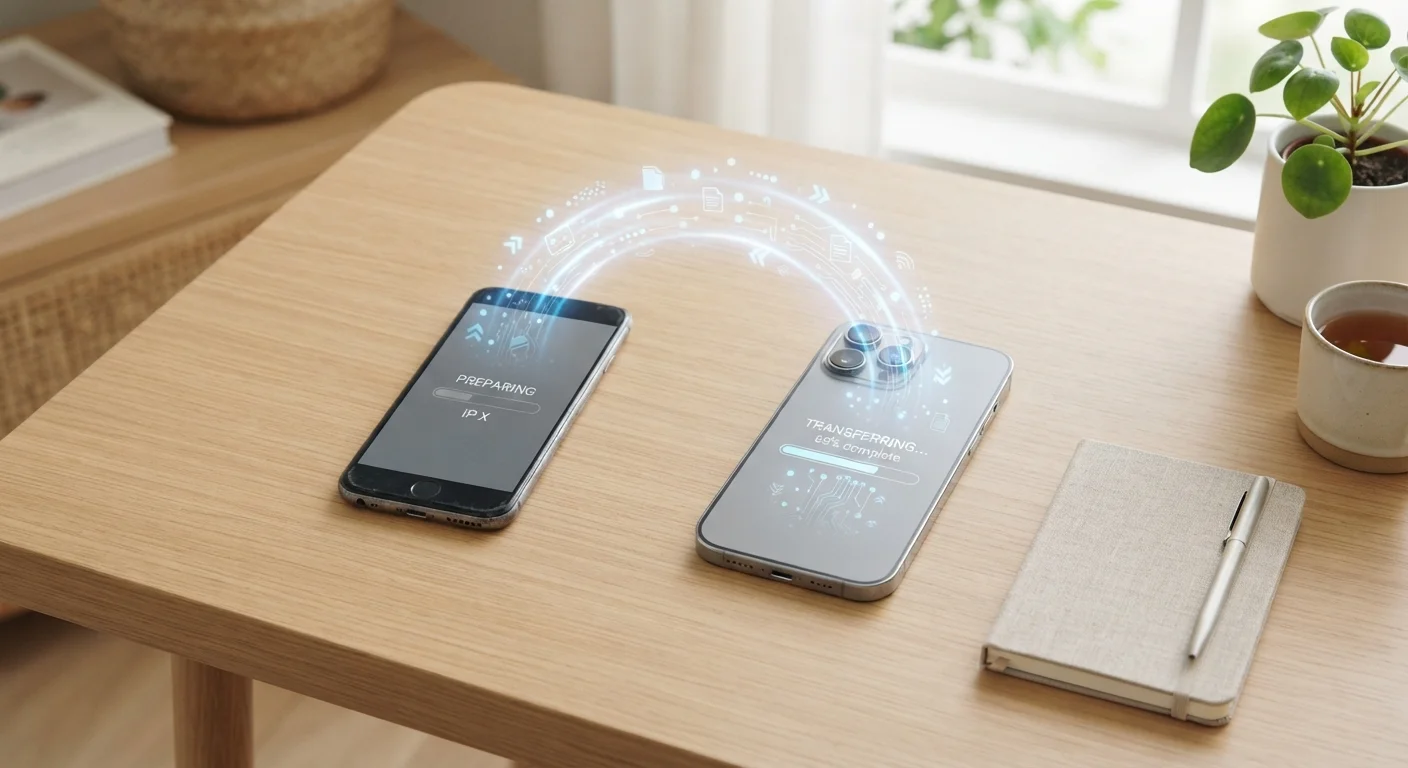
Photo: InsightsVilla.com | Quick Search. Right Info editorial
Key Takeaways
- Back up your old phone before doing anything else - it's your safety net.
- Android and iPhone each have built-in transfer tools that handle most data automatically.
- Some data, like two-factor authentication apps and banking apps, requires manual setup on the new device.
- Verify that everything transferred correctly before wiping or trading in your old phone.
- Sign out of all accounts on your old phone after the transfer is confirmed complete.
Why Phone Transfers Go Wrong - and How to Avoid It
Switching smartphones has gotten much easier over the past several years, but it still trips people up. The most common problems aren't technical failures - they're skipped steps. People forget to back up first, assume everything transfers automatically, or wipe the old phone too soon before confirming the new one has everything.
Understanding what transfers automatically and what doesn't is half the battle. Cloud-backed data - contacts synced to Google or iCloud, photos backed up to a photo service, calendar events - moves reliably. Locally stored data (certain app settings, SMS history on some platforms, authenticator app tokens) often doesn't. This guide walks you through the full process so nothing gets left behind.
What you will need
Once you have what you need, gather your tools before starting.
Google Account / Google One
Backs up Android contacts, photos, app data, and settings to the cloud for easy restoration.
Apple ID / iCloud
Backs up iPhone data including contacts, messages, photos, and app data for transfer to a new iPhone.
Move to iOS (Android app)
Apple's official app for moving data from an Android phone to a new iPhone over Wi-Fi.
USB transfer cable
Enables direct device-to-device or device-to-computer data transfer without relying on cloud storage.
Google Photos
Syncs and preserves your photo library across both Android and iPhone platforms.
Step-by-Step Transfer Instructions
Follow these steps in order. Skipping ahead - especially the backup step - is the most common cause of data loss during a phone switch.
Back up your old phone completely
This is the single most important step. A backup ensures that even if something goes wrong during the transfer, your data is safe.
- iPhone: Go to Settings → tap your name → iCloud → iCloud Backup → Back Up Now. Wait until the backup finishes before proceeding.
- Android: Go to Settings → System → Backup and make sure Google Backup is turned on. Tap Back up now to trigger an immediate backup.
Confirm the backup timestamp shows today's date before moving on.
Choose your transfer method
The right method depends on which platforms you're moving between.
- iPhone to iPhone: Use Quick Start - place both phones near each other during new phone setup and follow the on-screen prompts to transfer directly or restore from iCloud.
- Android to Android: Most Android phones offer a built-in setup wizard that detects a nearby phone and transfers data via Wi-Fi or cable.
- Android to iPhone: Download the Move to iOS app on your Android before starting setup on the new iPhone, then follow the guided steps.
- iPhone to Android: Use Google Photos to migrate your pictures, and manually export contacts as a .vcf file from iCloud.com before importing them into your Google account.
Run the transfer during new phone setup
The best time to trigger an automatic transfer is during the initial setup of your new phone - before you finish configuring it. Both iOS and Android present the data-transfer option early in the setup flow.
Keep both phones plugged in during this process. Depending on how much data you have, the transfer can take anywhere from a few minutes to over an hour on a slower Wi-Fi connection.
Manually handle apps that don't transfer automatically
Even a successful transfer won't move everything perfectly. A few categories always require manual attention:
- Two-factor authentication (2FA) apps (such as authenticator apps): These must be migrated individually using each app's built-in account transfer or export feature.
- Banking and financial apps: Re-download and log in on the new device. Many require identity re-verification.
- Purchased apps from a different ecosystem: Apps bought on Android's Play Store won't carry over to iPhone, and vice versa.
- Text message history: SMS backup and transfer varies widely. Third-party backup apps can help, but success isn't guaranteed across platforms.
Verify everything transferred correctly
Before you do anything to your old phone, spend time checking the new one thoroughly:
- Scroll through your contacts and confirm key entries are present.
- Open your photo library and check that recent photos appear.
- Log in to your most-used apps and confirm they're functional.
- Check your Wi-Fi passwords, calendar events, and notes.
Don't rush this step. It's far easier to re-run a transfer now than to recover data after the old phone has been wiped.
Sign out and prepare your old phone
Once you're confident everything is on your new device, sign out of all accounts on the old phone and perform a factory reset if you're trading it in or selling it.
- iPhone: Go to Settings → tap your name → Sign Out. Then go to Settings → General → Transfer or Reset iPhone → Erase All Content and Settings.
- Android: Go to Settings → System → Reset options → Erase all data (factory reset).
See our complete trade-in checklist for everything else to do before handing your old phone over.
iMessage Users: Deregister Before Switching to Android
After the transfer, take some time to set up your new phone the way you like it. Our guide on organizing your apps and home screen is a good next stop, and for long-term care, see how to keep your new phone running well for years. It's also worth reviewing smartphone security basics as you get settled on your new device.
A Fresh Start Is a Good Security Moment
The content on this site is for informational purposes only and is not a substitute for professional advice. Always consult a qualified professional for guidance specific to your situation.